

Manage DNS records
Use this guide to create, edit, remove, or import DNS records hosted by Domain Chief.
Choose your task
- Create a DNS record
- Edit or remove a record
- Import, export, reset, or clear records
- Understand the record fields
- Fix a DNS record problem
Before you make a change
Open Domains, select the domain, and check the DNS section. Manage DNS records is available when the domain uses Domain Chief nameservers.
Prepare the complete record given to you by your website, email, or verification provider. You need its type, name, content, and sometimes its priority or TTL. Use the exact values supplied by that provider.
Export the zone before a major change
Export the current records before replacing mail settings, moving a website, or clearing a zone. The export gives you a copy to work from if the new setup is incomplete.
Create a record
- Open Domains and select the domain.
- In the DNS section, select Manage DNS records.
- Select Create record.
- Choose the Type.
- Enter the Name. Leave it empty or use
@for the apex. - Enter the Content and any type-specific fields.
- Choose the TTL.
- Optionally select Add comment to record why the entry exists.
- Select Save.
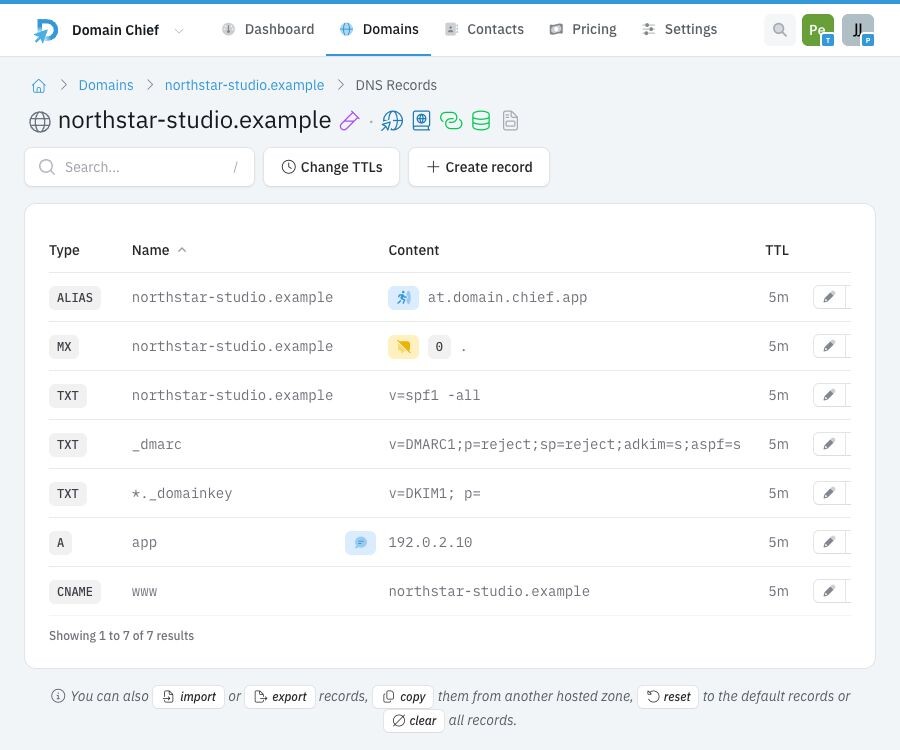
northstar-studio.example is a reserved test name. The addresses and records in the screenshot are demonstration data.
What happens next
The new record appears in the table. Domain Chief sends the change to its DNS provider after you save it. A warning icon on a row means the record could not be synchronized or conflicts with another record. Public resolvers may continue using the previous answer until its TTL ends.
Manage existing records
Edit or remove a record
Use the pencil button on a row to edit it. Check the complete name and content before saving because the change replaces the current value.
Use the delete button to remove a record. Removing a website or mail record can stop that service as soon as cached copies expire.
Some rows have a colored icon beside their content. Domain Chief, Tny, web redirects, or mail forwarding may have added these records. Follow the icon's link or tooltip before editing or deleting the row. Removing it can break the feature that owns it.
Change TTLs for the whole zone
Select Change TTLs to give every record in the zone the same TTL. This is useful before a planned migration, but it also changes records that were not otherwise involved.
Set the lower TTL before the migration and wait at least as long as the previous TTL. After the new setup works, you can increase it again.
Import, export, reset, or clear records
The links below the table provide zone-wide actions:
- Import replaces or adds records from supported files and pasted data after showing a preview.
- Export downloads the current zone in BIND-compatible text format.
- Copy replaces the zone with records from another hosted domain in the same team.
- Reset removes the current records and restores Domain Chief's defaults.
- Clear removes all records.
Reset and clear cannot be undone. They can also remove working website and mail settings. Export first and review the confirmation carefully.
See Import and migrate DNS records for supported sources, replacement and merge behavior, previews, and conflict handling.
Understand the record fields
Type
Choose the type requested by the service you are connecting.
| Type | Common use |
|---|---|
A | Points a name to an IPv4 address. |
AAAA | Points a name to an IPv6 address. |
CNAME | Points a subdomain to another hostname. Do not use it at a name that also has other records. |
ALIAS | Points a name, including the apex, to another hostname while behaving like address records. |
MX | Directs incoming email. Lower priority numbers are tried first. |
TXT | Stores verification values and email policies such as SPF, DKIM, and DMARC. |
CAA | Limits which certificate authorities may issue certificates for the domain. |
SRV | Publishes a service target, port, priority, and weight. |
Domain Chief also supports TLSA and NS. Add these only when your service or DNS administrator gives you the required values.
Name
The name is the part before the domain. Enter www to create www.example.com. Leave the field empty or enter @ for the domain itself, also called the apex.
Enter only the relative name shown in the form. For example, use _dmarc, not _dmarc.example.com.
Content and priority
Content is the destination or value. Its format depends on the record type. Domain Chief shows separate structured fields for types such as MX, CAA, and SRV when needed.
Copy hostnames, IP addresses, and verification values exactly. A trailing dot is not needed unless the provider's instructions specifically require it.
TTL
The TTL tells other DNS resolvers how long they may cache a record. Five minutes is a useful default while setting up or changing a service. A longer TTL reduces repeated lookups once the setup is stable.
Lowering the TTL does not clear copies that were already cached. Resolvers may continue using the old value until its previous TTL ends.
Troubleshooting
Why does the domain itself not resolve?
Check the apex record. Its Name appears as the full domain in the table. A record for www does not also cover the apex.
Why does a CNAME conflict with another record?
A CNAME must be the only record at its name. Remove the conflicting record or use the record type recommended by your provider. At the apex, an ALIAS is often the appropriate hostname-based choice.
Why did email stop arriving?
Check the MX records and their priorities. Also check that required SPF, DKIM, and DMARC TXT records still exist. The MX value 0 . is a null MX record, which states that the domain does not receive email.
Why does SPF validation report multiple records?
Publish one SPF policy per name. Combine the required mechanisms into a single TXT value instead of creating several values that begin with v=spf1.
Why is a DNS change not visible yet?
Confirm that the domain still uses Domain Chief nameservers and that the row has no synchronization warning. Cached DNS answers can remain in use until their TTL ends.
Check the public DNS answer
Use the Chief Tools DNS checker to see what DNS currently returns. The lookup button beside the domain heading opens the same tool with the domain already filled in.