

Connect Cloudflare for DNSSEC
Use this guide when a domain uses Cloudflare nameservers and you want Domain Chief to retrieve and register its DNSSEC key.
Choose your task
- Connect a Cloudflare account
- Enable DNSSEC for one domain
- Enable DNSSEC for several domains
- Test or remove a connection
- Fix a Cloudflare DNSSEC problem
Connect Cloudflare
Before you connect Cloudflare
The Cloudflare zone must belong to an account that you can connect, and the domain must use Cloudflare nameservers. Domain Chief uses the connection to find the zone, enable DNSSEC at Cloudflare when necessary, retrieve its key, and register that key for the domain.
This integration does not move DNS records to Cloudflare or change a domain to Cloudflare nameservers. Complete that migration first and make sure the zone answers correctly.
Avoid a broken DNSSEC chain during a provider change
Disable DNSSEC at least 24 hours before changing nameservers or replacing keys. Enable it again only after the new provider answers correctly. DNSSEC changes can take up to 24 hours to propagate.
See Change nameservers and manage DNSSEC for the complete migration sequence.
Connect a Cloudflare account
- Open Settings in Domain Chief.
- Find Cloudflare Connections and select Connect account.
- Select Create account API token or Create user API token. An account token is recommended because it belongs to the Cloudflare account rather than one user.
- In Cloudflare, review the prefilled token name, permissions, and zone resources.
- Create the token and copy its value. Cloudflare shows the complete secret only once.
- Return to Domain Chief, paste it under API Token, and select Connect.
The token needs these permissions:
- DNS: Edit
- Zone: Read
- Account Settings: Read
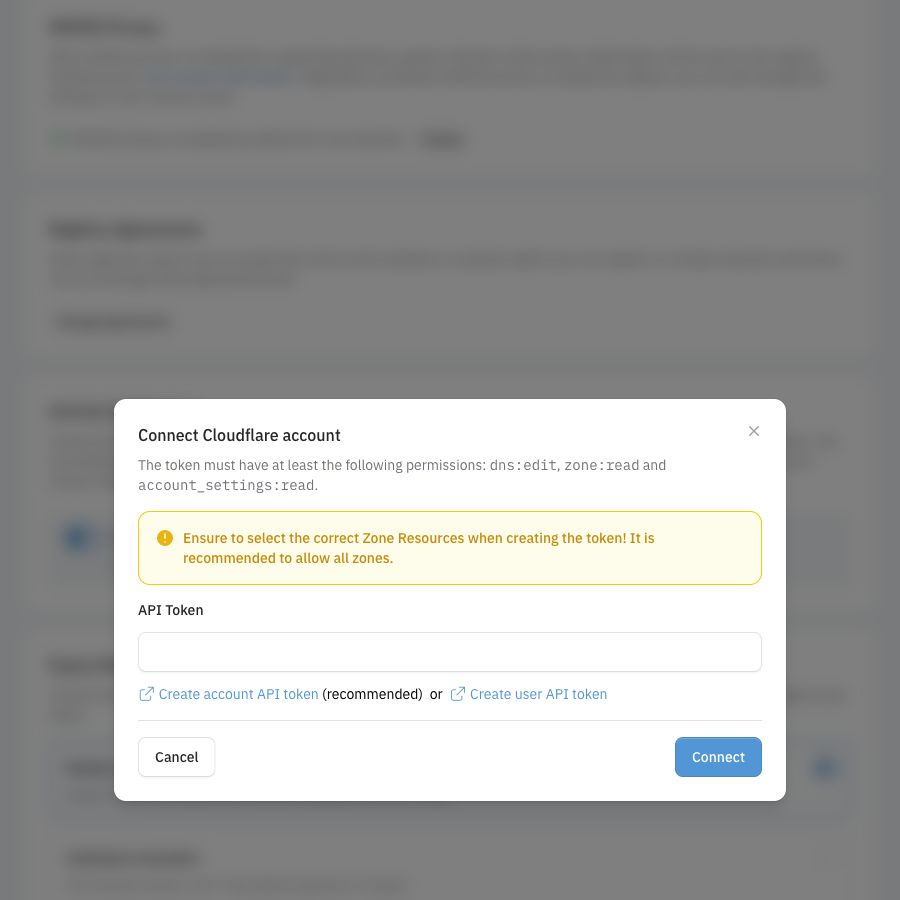
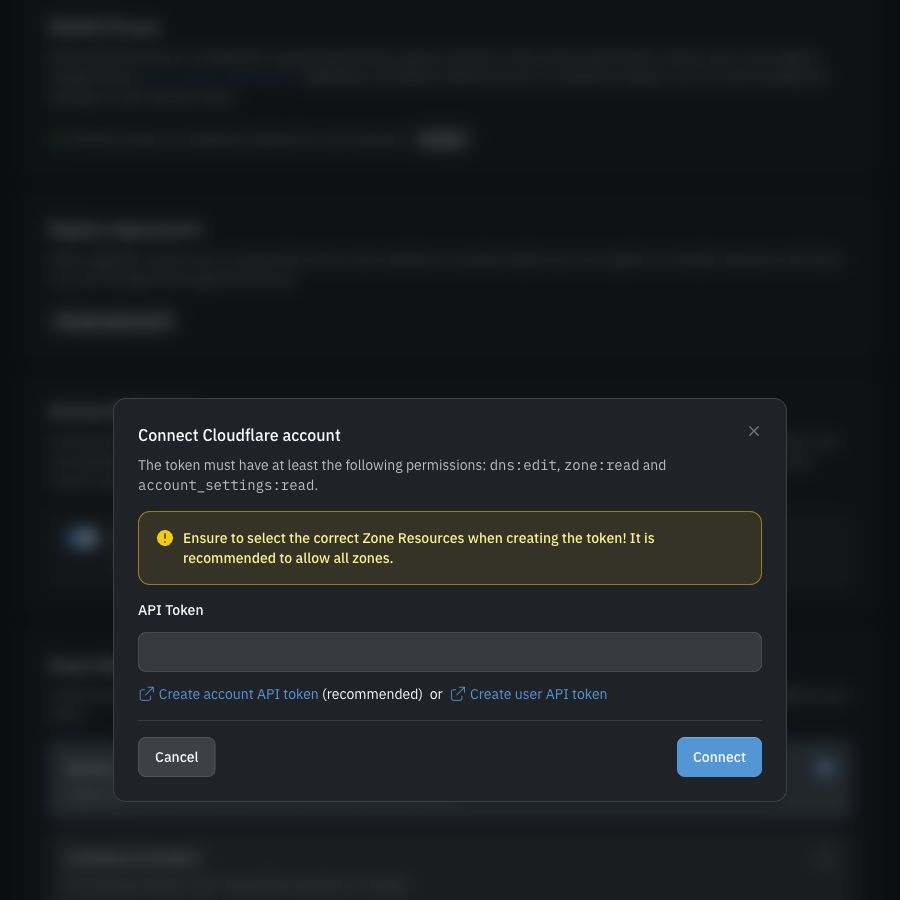
Allow access to every zone that Domain Chief should manage. The token can be restricted to selected zones, but domains outside that selection cannot use the connection.
Protect the API token
The token can change DNS settings for every zone in its allowed resources. Keep it private, grant only the permissions and zones listed above, and revoke it in Cloudflare if it is exposed.
After connecting, Domain Chief shows the Cloudflare account name and whether it uses an account or user token. A token that covers more than one account is shown as a connection to multiple accounts.
Test or remove a connection
In Settings, find Cloudflare Connections and use the plug button beside an account to test its token. A successful test also refreshes the account names shown in Domain Chief.
Use the delete button to disconnect an account. This removes Domain Chief's access but does not disable DNSSEC in Cloudflare or remove keys already registered for domains. Plan any DNSSEC or nameserver changes separately before disconnecting a connection that is still in use.
Enable DNSSEC
Enable DNSSEC for one domain
- Confirm that the Cloudflare zone resolves correctly and that DNSSEC is currently disabled at the registrar.
- Open Domains and select the domain.
- In the DNS section, open Manage DNSSEC.
- Select Retrieve from Cloudflare.
- Review the retrieved key and select Save keys.
If DNSSEC is disabled in Cloudflare, Domain Chief tries to enable it before retrieving the key. Saving registers the retrieved key for the domain. The update may remain pending while the registry processes it.
Afterwards, use the Chief Tools DNS checker to confirm that the domain publishes a DS record and that its signed DNS answers validate. Allow up to 24 hours for the complete chain to update.
Enable DNSSEC for several domains
Use the bulk action only after the Cloudflare zones are working and all selected domains are ready.
- Open Domains.
- Filter Nameserver provider to Cloudflare and DNSSEC enabled to No.
- Select the active domains on the current page.
- Open the bulk actions menu and choose Enable DNSSEC via Cloudflare.
- Check the selected count and confirm the action.
Domain Chief retrieves each available Cloudflare key and schedules the registry update. Domains that do not use Cloudflare nameservers or already have DNSSEC enabled are left unchanged. If a connected token cannot access a zone or return a usable key, that domain is also left unchanged; review the results individually.
Bulk Cloudflare DNSSEC enablement is unavailable when the selection contains a .de domain. Nothing is changed in that case. Enable each .de domain separately so its configuration can be validated.
Troubleshooting
Why does Domain Chief say the token has no accounts?
Check that Account Settings: Read is present and that the token can access the intended Cloudflare account. For an account token, the person creating it must also have enough Cloudflare access to create account-owned tokens.
Why does the connection fail?
Create a new token from the links in the Domain Chief dialog and keep the prefilled permissions. Confirm that the token is active and that you copied the complete value. Do not use the Cloudflare Global API Key.
Why is Retrieve from Cloudflare missing?
The domain must be recognized as using Cloudflare nameservers, and the current team must have at least one Cloudflare connection. Also confirm that your role can edit the domain's DNSSEC keys.
Why can Domain Chief not access the zone?
The connected token does not cover the Cloudflare account or zone. Edit or replace the token so its Zone Resources include that domain, then test the connection and try again.
Why could DNSSEC not be enabled in Cloudflare?
Open the zone in Cloudflare and enable DNSSEC there. If Cloudflare reports a zone or plan problem, resolve it before selecting Retrieve from Cloudflare again.
Why is the Cloudflare key rejected?
The domain's extension may not support the algorithm returned by Cloudflare, or the registry may reject the current configuration. Check the notice on the domain page. For .de, use the individual flow rather than the bulk action.
Why does DNSSEC still appear broken after saving?
Registry and DNS updates are not immediate. Wait up to 24 hours, then check the DS record and DNSSEC validation with the Chief Tools DNS checker. If the Cloudflare key and registry DS record do not match after that period, remove the incorrect registrar key before attempting another provider change.