

Register a domain
Use this guide to search for an available domain and register it with the right DNS and contact settings.
Register the domain
Before you start
Choose which Domain Chief team should hold the domain. That team controls billing, contacts, nameserver defaults, and access after registration.
Prepare these details:
- The exact domain name and extension you want.
- The nameservers supplied by your DNS or hosting provider, if you will not use Domain Chief hosted DNS.
- Accurate registrant contact details. Some registries ask for extra information or an intended-use statement.
Check the spelling before you pay
Domain registrations are non-refundable, including registrations made with a typo.
Submit the registration
- Open the Domain Chief dashboard, select Domains, and choose Register.
- Enter the name you want. Include the extension when you want to check one exact domain, such as
cedar-grove.example. - Select Search domains.
- Compare the registration and renewal prices in the results. You can filter registered names, filter by category, or sort the results.
- Select Register beside an available domain.
- On the review page, confirm the complete domain name, registration price, yearly renewal price, and registration period.
- Choose Domain Chief or custom nameservers.
- Review the registrant contact, WHOIS privacy, and any Intended Use field.
- Accept the registry agreements shown on the page and select Register.
If the exact domain is already registered, Domain Chief may offer a transfer instead. Follow Transfer a domain if you own it elsewhere.
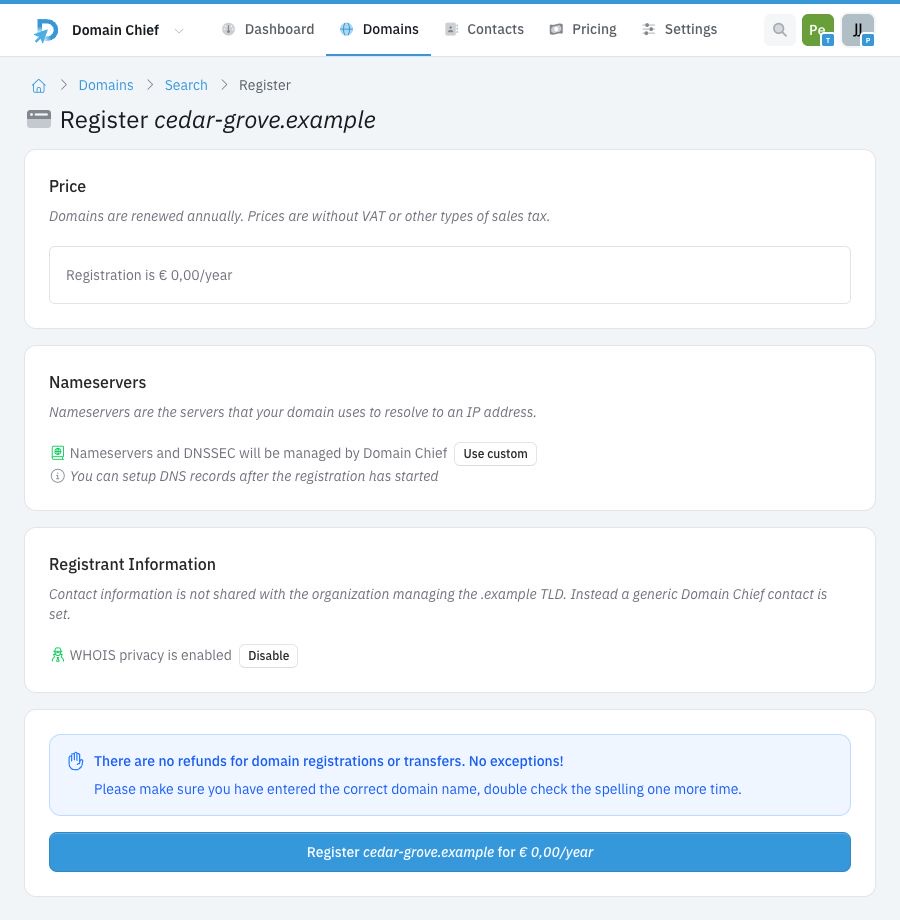
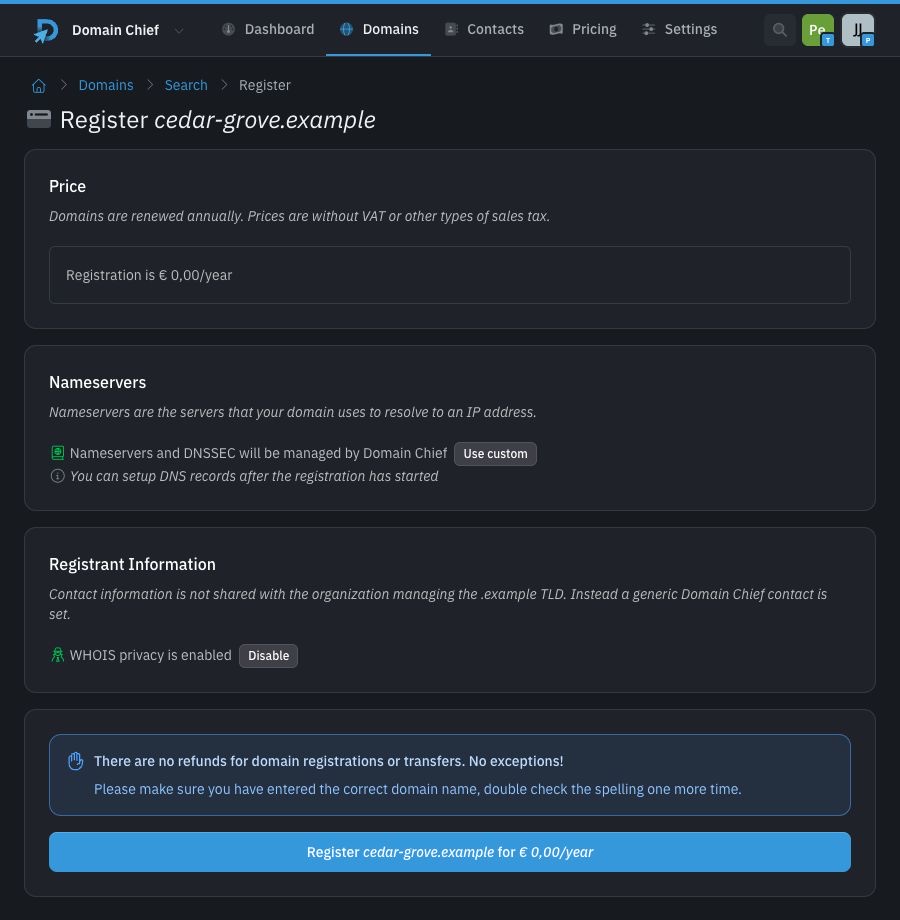
cedar-grove.example is a reserved test name. Its displayed price and registry behavior are demonstration data. Use the values shown for your domain when registering a real name.
What happens next
Domain Chief opens the new domain page after accepting your request. The registry checks availability and pricing again when it processes the registration. Another person can register the same name before your request completes, so treat the domain as registered only when its status becomes active.
If your team pays before an operation runs, the domain remains pending until you complete the payment. Follow the payment notice on the domain page. Also complete any action-required notice or contact-verification message.
New registrations have auto-renew enabled. The Renewal section on the domain page shows the renewal date and price. You can disable auto-renew there if you do not want Domain Chief to renew the domain automatically.
When you chose Domain Chief nameservers, open DNS Records and add the records needed by your website and email provider. When you chose custom nameservers, make those changes at the external DNS provider instead.
Review the registration choices
Price and registration period
The review page shows the registration price and the yearly renewal price. They can differ. A first-year promotion, a multi-year minimum, or premium pricing can change what you pay.
Prices shown in Domain Chief exclude VAT and other applicable sales taxes. If the app identifies a premium domain or says that it cannot be registered online, follow the message on the page before continuing.
Where DNS will be managed
The Nameservers section controls where you manage DNS after registration.
| Choice | What happens |
|---|---|
| Domain Chief nameservers | You create and manage DNS records in Domain Chief. Domain Chief also manages DNSSEC for the domain. |
| Custom nameservers | You enter the nameservers from another DNS or hosting provider. You manage DNS records and, when supported, DNSSEC with that provider. |
Choose Use custom to enter your own nameservers. You can fill them from the team's defaults or a saved nameserver template when those options are available.
Do not enter a web server's IP address as a nameserver. Nameservers are hostnames such as ns1.example.net. Add IP addresses later as A or AAAA records at the DNS provider.
Registrant information
The registrant is the person or organization that holds the domain. Domain Chief starts with the selected team's default contacts.
WHOIS privacy is enabled by default when both the top-level domain and the team settings allow it. Privacy behavior differs between registries. The Registrant Information section explains whether Domain Chief sends a privacy contact or the registrant's contact details to the registry.
Keep the underlying contact details accurate even when privacy is enabled. A registry may require verification or additional information. Some top-level domains also show an Intended Use field. Describe the real purpose of the domain if that field appears.
Troubleshooting
Why does Domain Chief offer a transfer?
The registry reports that the domain is already registered. If it belongs to you, follow the domain transfer guide. Otherwise, search for another name.
Why did the price change?
Availability and pricing are checked again before registration. Premium status, exchange rates, or registry price changes can affect the final amount. Review the price on the registration page before submitting.
Why were the nameservers rejected?
Copy the nameserver hostnames from your DNS provider and try again. Some top-level domains impose extra nameserver or DNS checks. The validation message on the form identifies the setting that needs attention.
Why is the registration waiting for payment?
Open the domain page and follow the payment notice. Domain Chief will not start another paid registration or transfer for the team while that payment is awaiting completion or confirmation.
Why is the registration still pending?
Check the domain page for an Action Required notice and check the registrant's email. If the registry rejects the request, Domain Chief shows the reason when one is available. Follow Resolve action-required notices to correct the reported problem and use the retry option if the page offers one.
Why does the website not work after registration?
Registration does not publish a website. Check which nameservers are active, then add the DNS records supplied by your web host. DNS changes can take time to appear across the internet. The Chief Tools DNS checker shows the current public answers, and the lookup button beside the domain heading opens it with the domain already filled in.