

Manage teams and roles
Use this guide to invite people to an Account Chief team and give them the access they need.
Choose your task
- Invite a team member
- Compare Owner, Member, and Billing
- Change a member's role
- Transfer team ownership
- Remove a member or leave a team
- Fix a team access problem
Invite a team member
You must be an Owner of the team.
- Open Teams in Account Chief and select the team.
- Expand Invite member.
- Enter the person's Email address.
- Select a Role. Choose Member for ordinary app access, Billing for someone who only manages subscriptions and invoices, or Owner for full team administration.
- Select Invite team member.
What happens next
Account Chief emails an invitation that names the team and selected role. The recipient can sign in or create a Chief Tools account, then select Accept. Their role appears beside their name in the Members list after they accept.
The invitation email states when its link expires. Send a new invitation if the recipient does not accept it in time.
Choose a role
| Capability | Owner | Member | Billing |
|---|---|---|---|
| Use connected Chief Tools apps | Yes | Yes | No |
| View team details, members, plans, limits, and team token metadata | Yes | Yes | Yes |
| Manage subscriptions and invoices | Yes | No | Yes |
| Edit the team name, Gravatar email, and timezone | Yes | No | No |
| Invite or remove people and change roles | Yes | No | No |
| Create or revoke team API access tokens | Yes | No | No |
| Use the team as the default when signing in | Yes | Yes | No |
| Delete the team | Yes | No | No |
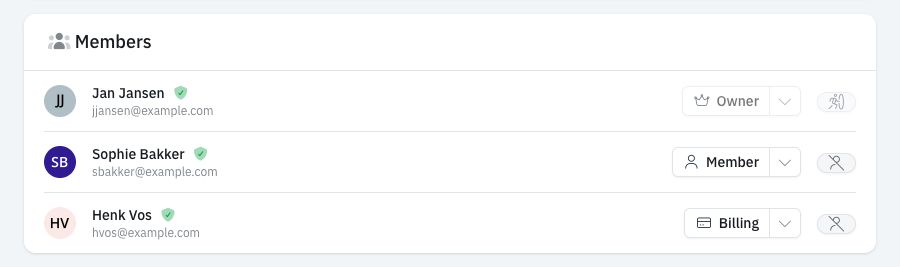
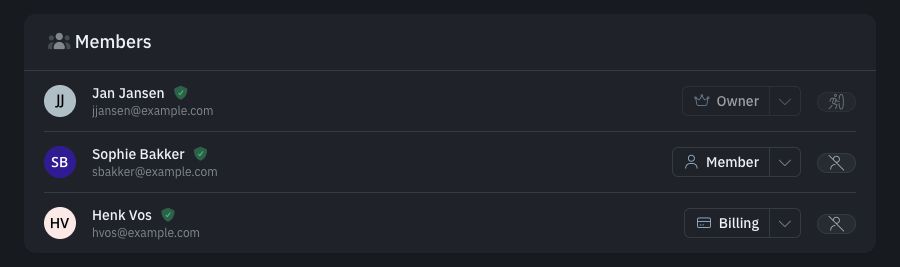
The names and email addresses above are demonstration data.
Billing removes app access
When you change someone to Billing, Account Chief removes their access to connected apps for this team and revokes their personal or OAuth credentials tied to it. If they no longer have an Owner or Member role on any team, Account Chief revokes all their personal and OAuth credentials. Team API access tokens belong to the team and are not affected.
Change a member's role
You must be an Owner, and you can only change another person's role.
- Open Teams and select the team.
- Find the person under Members.
- Select their current role.
- Select Owner, Member, or Billing.
Account Chief saves the role immediately. The person's available actions change the next time they open a page. Changing someone to Billing also has the credential effects described under Choose a role.
Transfer team ownership
Account Chief requires every team to keep at least one Owner. You cannot change your own role, so another Owner must complete a transfer.
- Invite the new owner with the Owner role, or change an existing member to Owner.
- Wait until the new owner appears as Owner in the Members list.
- Ask that owner to change your role to Member or Billing. You can also leave the team once another owner remains.
The team is no longer dependent on your account when another Owner remains.
Remove a member or leave a team
An Owner can remove another person. Any team member can leave on their own, unless they are the team's final Owner.
- Open Teams and select the team.
- Find the person under Members.
- Use the action at the right of their row.
- Confirm Remove from team or Leave this team.
What happens next
The person loses access to the team's resources. Account Chief also revokes credentials tied to that team. If the person no longer has app access through another team, it revokes all their personal and OAuth credentials.
If the removed team was their default, Account Chief chooses another team. When no other team remains, Account Chief creates a personal team for them.
Troubleshooting
Why can I not change my own role?
Account Chief does not let anyone change their own role. Ask another Owner to make the change. If you are the only Owner, assign another person as Owner first.
Why can I not leave or remove an owner?
That person is the team's final Owner. Add another Owner before changing or removing them. The same safeguard stops the final Owner from deleting their Chief Tools account while other people still belong to the team.
Why can a billing member not open a connected app?
Billing access is limited to team details, subscriptions, and invoices. Change the person to Member or Owner if they also need to use connected Chief Tools apps.
Why can I not send the invitation again?
Account Chief limits repeated invitations to the same email address. Wait for the retry period shown by Account Chief, then send a new invitation. If the first link has expired, the recipient must use the new email.
Why does the invitation show a different email address?
The recipient is signed in with an address other than the invited address. They should sign out and use the address named in the invitation before accepting it.