

Understand billing and pending payments
Use this guide to find the right billing view and understand when a domain operation is waiting for payment.
Choose your task
- Pay a pending domain operation
- Preview the next invoice
- Estimate a year of renewal costs
- Manage billing details or past invoices
- Fix a billing problem
Pay pending domain operations
Some teams pay for new registrations and incoming transfers before Domain Chief starts them. These operations appear with the Pending payment status and are collected into one payment.
When a payment is waiting, use the Review and pay button in the banner, or open Settings and select Pending payments.
- Check every domain, operation, and amount in the list.
- Update your payment information with Manage billing details when needed.
- Select Pay now.
- Complete the checkout and return to Domain Chief.
Prices in the list exclude VAT and other sales tax. The final total is adjusted for the team's VAT status and billing country.
What happens next
Domain Chief confirms the payment before starting the listed operations. Leave the Pending payments page open while it says Payment confirmation pending; the page checks for an updated status automatically.
After confirmation, the registrations and transfers start shortly. Open Domains to follow each operation. Payment does not guarantee that a registry will accept an operation, so respond to any later action-required or failure notice on the domain page.
Finish an active checkout before adding more domains
Once checkout has started, you cannot add another registration or transfer to the payment. Complete or cancel that checkout first.
Change the payment before paying
Before checkout starts, open an individual pending domain and select Cancel operation if it should not be included. Cancelling a pending registration removes it from Domain Chief. Use this carefully and start a new request later if you still need the domain.
After checkout starts, individual operations cannot be removed. Select Cancel checkout on the payment page to return the complete payment to an editable state. The domain operations remain in the list and can be paid later.
Review invoices and costs
Preview the upcoming invoice
Open Settings, find Invoicing, and select Preview upcoming invoice.
This page combines:
- Billable activity that has already taken place.
- Domain renewals expected in the invoice period.
- Mail forwarding renewals expected in that period.
- Scheduled transfers expected to run in that period.
Future items are marked as estimates because the charge has not happened yet. A renewal may disappear if you disable auto-renew, a scheduled transfer may be cancelled, or a price may change before the operation runs.
The page shows the expected invoice date and a total before VAT or other sales tax. When nothing is billable in the current month, Domain Chief may show the next future invoice as a projection instead.
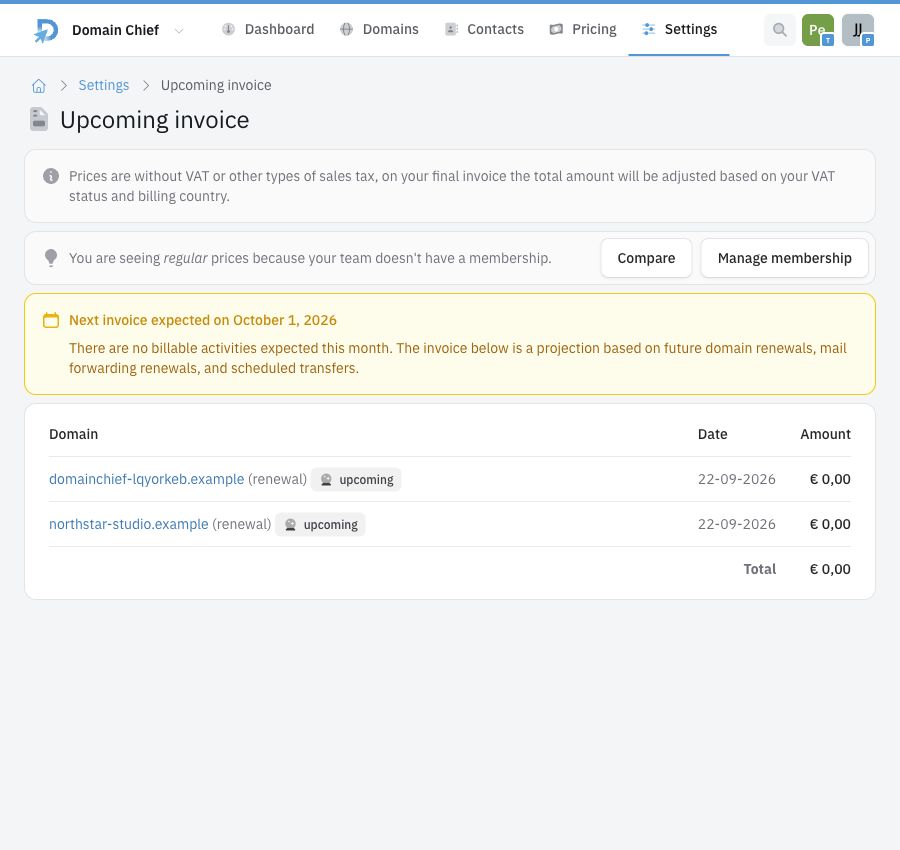
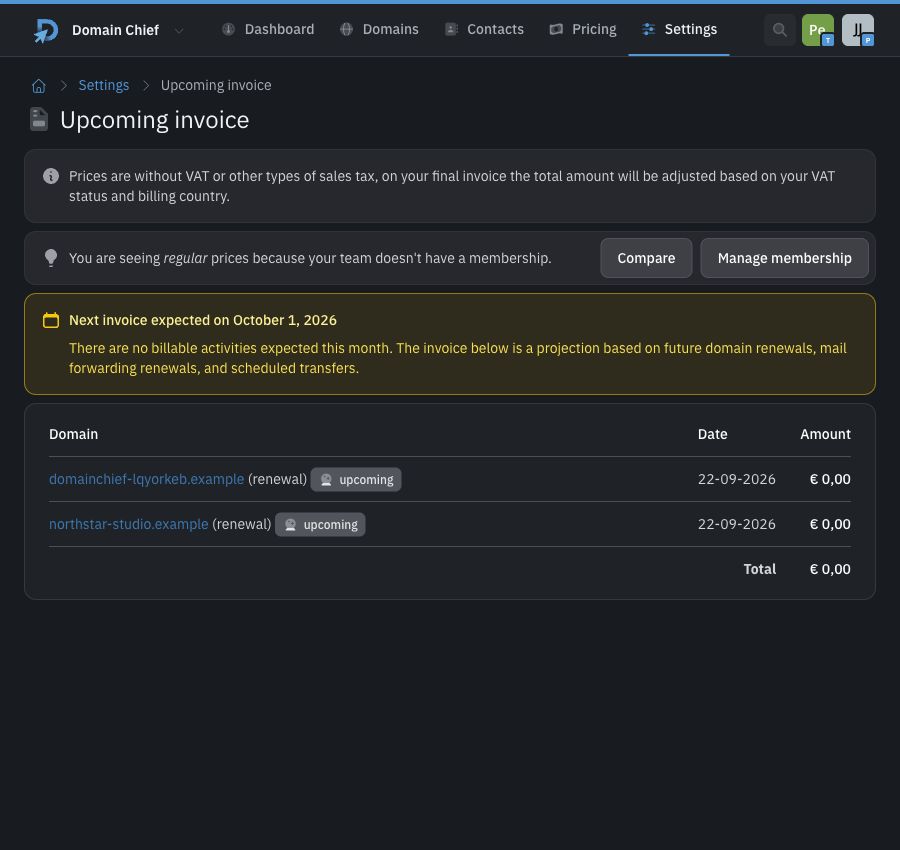
The .example domains and zero-value prices above are demonstration data. Your preview uses the domains, prices, and expected invoice date for your team.
Estimate annual portfolio costs
Open Settings, find Invoicing, and select Portfolio overview.
Use this view for a broad estimate of the next 12 months rather than for the next invoice. It includes:
- Active, non-premium domains with auto-renew enabled, grouped by extension.
- Active premium domains with auto-renew enabled, listed separately.
- Mail forwarding renewals expected during the next year.
Domains without auto-renew are excluded from the renewal estimate. Prices are estimates and exclude VAT and other sales tax. Premium renewal prices and other prices can change before the actual renewal.
Select an extension to open the matching domains. Use this together with Organize and manage a domain portfolio when you need to review or change the domains behind an estimate.
Manage billing details and past invoices
The Invoicing section in Settings explains how the current team is billed. Depending on the team's billing setup, it can provide links to:
- View past invoices.
- Manage billing details.
- Set up or remove automatic payment authorization.
These links can open the billing provider in a new tab. Team billing details are separate from domain registrant contacts; changing one does not update the other.
Pending payment or upcoming invoice?
| If you see | What it means | Where to go |
|---|---|---|
| Pending payment on a domain | The registration or transfer has not started because payment is required first. | Settings → Pending payments |
| An item on Upcoming invoice | The activity is already billable, or Domain Chief expects it in the shown invoice period. | Settings → Preview upcoming invoice |
| An item on Portfolio overview | It contributes to the estimated renewal cost for the next 12 months. | Settings → Portfolio overview |
Troubleshooting
Why is my registration or transfer not starting?
Open the domain and check for Payment Required, then open Pending payments. The operation starts only after Domain Chief confirms the payment.
Why can I not add another domain to the payment?
A checkout is already active or its payment is being confirmed. Continue the payment, wait for confirmation, or select Cancel checkout when that button is available.
Why can I not cancel one pending operation?
Individual cancellation is available only before checkout starts. Cancel the checkout first, then open the domain and cancel its operation.
Why does payment confirmation keep waiting?
Keep the page open while Domain Chief checks the payment status. If Payment confirmation check failed appears, Domain Chief retries automatically. Do not start a second payment for the same operations.
Why is the upcoming invoice different from the final invoice?
Future operations are estimates, and the preview excludes the final tax adjustment. A renewal, scheduled transfer, forwarding charge, price, or tax treatment can change before invoicing.
Why is a domain missing from the portfolio estimate?
The portfolio view includes renewal costs only for active domains with auto-renew enabled. Check the domain's status and auto-renew setting. Mail forwarding is counted separately.