# Create web redirects
import {BrowserWindow, Callout, Head} from "zudoku/components";
Create web redirects | Domain Chief
Use this guide to redirect a domain or subdomain to another URL with Domain Chief hosted DNS.
## Choose your task
- [Create a redirect](#create-a-redirect)
- [Choose a status code](#choose-a-status-code)
- [Keep or remove paths and query parameters](#decide-what-happens-to-paths)
- [Edit or remove a redirect](#edit-or-remove-a-redirect)
- [Fix a redirect problem](#troubleshooting)
## Before you start
Web redirects require Domain Chief nameservers. If the domain uses custom nameservers, create the redirect at its current web or DNS provider, or [move the domain to Domain Chief nameservers](/domainchief/nameservers-dnssec#move-back-to-domain-chief-nameservers) first.
## Create a redirect
1. Open **Domains** and select the domain.
2. In the **DNS** section, select **Manage redirects and mail forwarding**.
3. Under **Web Redirects**, select **create redirect**. If none exist yet, select the empty redirect area.
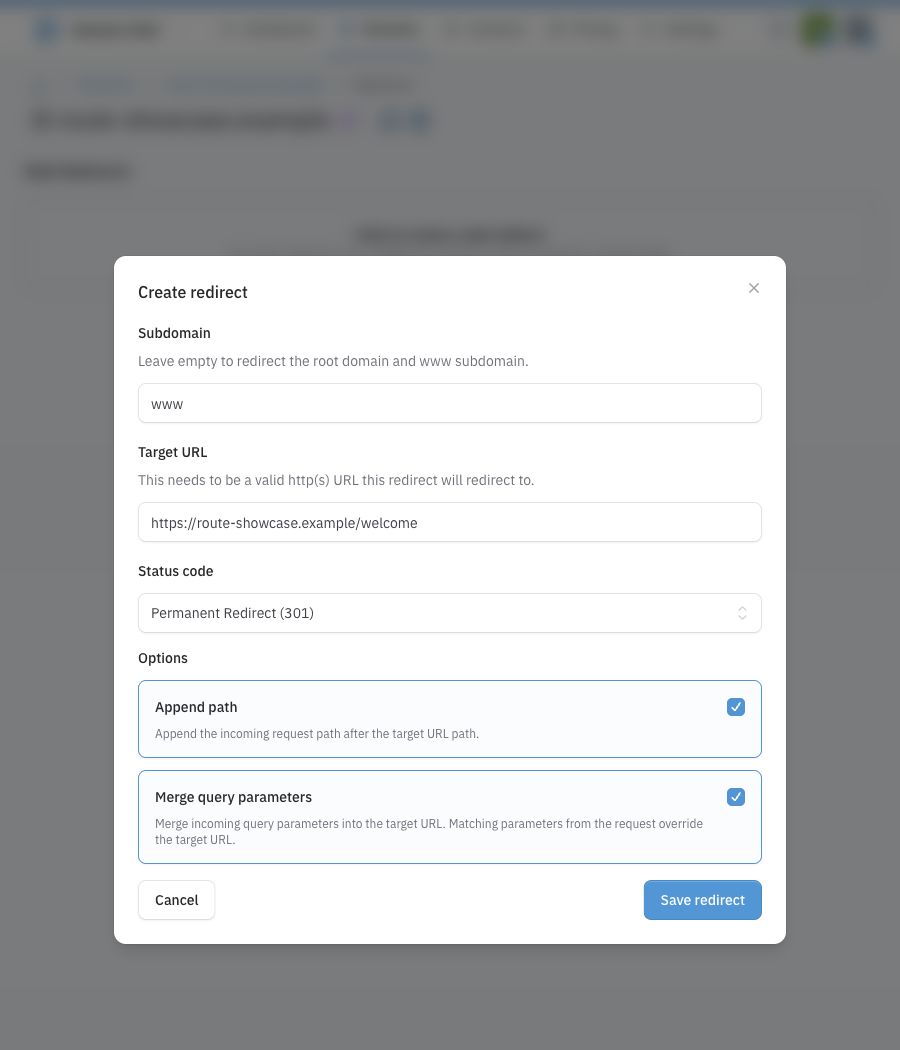
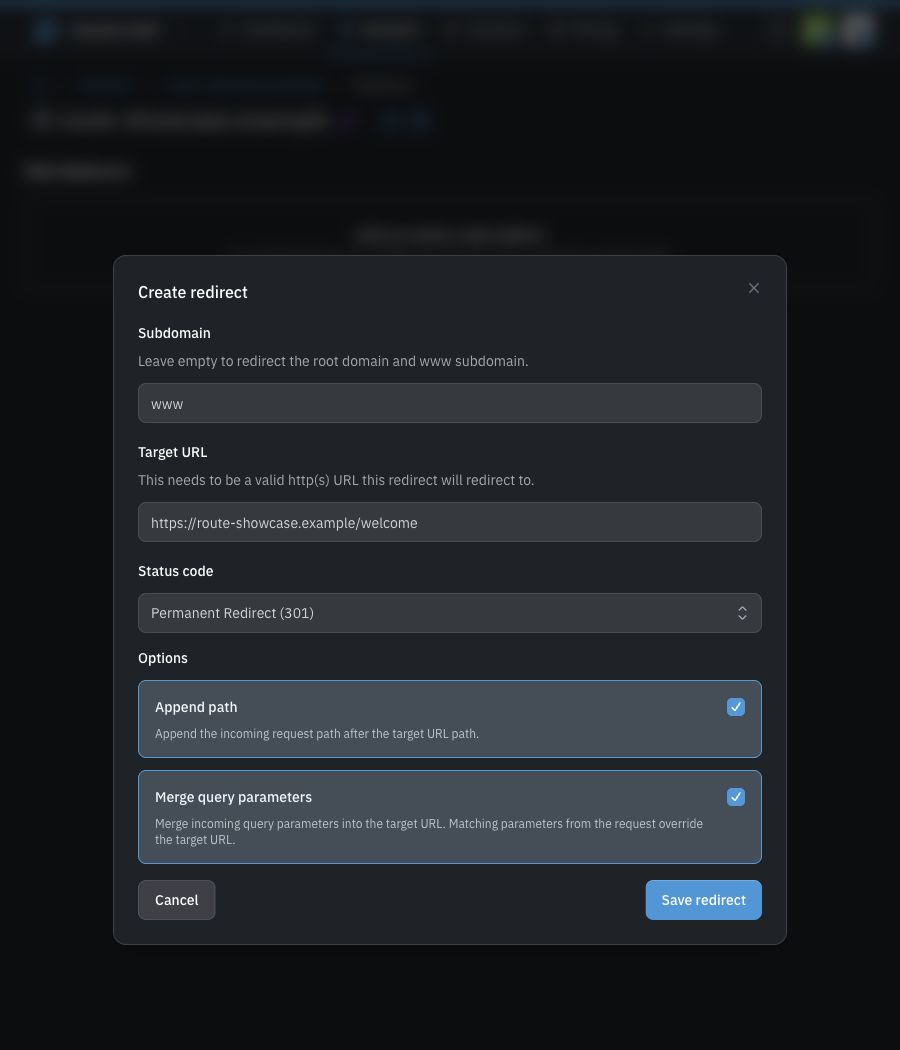
4. Choose the source in **Subdomain**.
5. Enter the complete **Target URL**, including `https://`.
6. Choose the **Status code**.
7. Choose whether to append paths and merge query parameters.
8. Select **Save redirect**.
Domain Chief creates the DNS records needed to send the selected hostname to its redirect service. DNS propagation can delay the first successful request.
 ### What happens next
Open the source address in a browser after its DNS records have propagated. Check both the root domain and `www` when the redirect covers them. If it does not work, review the managed records under **Manage DNS records**.
## Configure redirect behavior
### Redirect the root, www, or a subdomain
Leave **Subdomain** empty to cover both the root domain and `www`. Entering `www` has the same result.
Enter another relative name to redirect only that subdomain. For example, entering `support` on `northstar-studio.example` creates a redirect for `support.northstar-studio.example`. Do not enter the full domain name in the field.
Each source can have only one redirect. The list shows root redirects as covering both the bare domain and `www`.
### Choose a status code
| Code | Use it when | Important behavior |
| --- | --- | --- |
| `302` Temporary Redirect | The destination may change or you are testing the redirect. | Browsers and search engines should continue treating the source as temporary. This is the default. |
| `301` Permanent Redirect | The source has moved permanently. | Browsers and search engines may cache it and transfer indexing signals to the target. |
| `307` Temporary Redirect | The move is temporary and non-GET requests must keep their method and body. | Preserves the request method. |
| `308` Permanent Redirect | The move is permanent and non-GET requests must keep their method and body. | Preserves the request method and can be cached as permanent. |
For an ordinary browser address, use `302` while testing and change it to `301` only after the target is final. Permanent redirects can remain cached after you edit or remove them.
### Decide what happens to paths
Turn on **Append path** when pages below the source should keep their relative paths.
For a redirect with target `https://destination.example/archive`:
### What happens next
Open the source address in a browser after its DNS records have propagated. Check both the root domain and `www` when the redirect covers them. If it does not work, review the managed records under **Manage DNS records**.
## Configure redirect behavior
### Redirect the root, www, or a subdomain
Leave **Subdomain** empty to cover both the root domain and `www`. Entering `www` has the same result.
Enter another relative name to redirect only that subdomain. For example, entering `support` on `northstar-studio.example` creates a redirect for `support.northstar-studio.example`. Do not enter the full domain name in the field.
Each source can have only one redirect. The list shows root redirects as covering both the bare domain and `www`.
### Choose a status code
| Code | Use it when | Important behavior |
| --- | --- | --- |
| `302` Temporary Redirect | The destination may change or you are testing the redirect. | Browsers and search engines should continue treating the source as temporary. This is the default. |
| `301` Permanent Redirect | The source has moved permanently. | Browsers and search engines may cache it and transfer indexing signals to the target. |
| `307` Temporary Redirect | The move is temporary and non-GET requests must keep their method and body. | Preserves the request method. |
| `308` Permanent Redirect | The move is permanent and non-GET requests must keep their method and body. | Preserves the request method and can be cached as permanent. |
For an ordinary browser address, use `302` while testing and change it to `301` only after the target is final. Permanent redirects can remain cached after you edit or remove them.
### Decide what happens to paths
Turn on **Append path** when pages below the source should keep their relative paths.
For a redirect with target `https://destination.example/archive`:
| Incoming URL | Append path off | Append path on |
| --- | --- | --- |
| `https://old.example/products/desk` | `https://destination.example/archive` | `https://destination.example/archive/products/desk` |
The incoming path is added after any path already present in the target. Leave the option off when every request should land on one page.
### Decide what happens to query parameters
**Merge query parameters** carries values after `?` into the destination. It is enabled by default.
If the target is `https://destination.example/?campaign=archive&lang=en` and the visitor requests `?lang=nl&ref=email`, the merged destination keeps `campaign=archive`, uses `lang=nl`, and adds `ref=email`. A value from the incoming request replaces a target value with the same name.
Leave the option off when incoming tracking, search, or application parameters should not reach the destination.
## Review DNS conflicts
The source hostname must point to Domain Chief's redirect service. If it already has website or other address records, saving the redirect can replace them and take that service offline. Select **Review changes** when Domain Chief reports a conflict.
The conflict preview shows which records must change. Confirm that the hostname no longer serves a website or another service, then return and select **Save redirect** if the replacement is intentional.
Records created for a redirect are marked as managed on the DNS-records page. Edit the redirect rather than changing those records manually. See [Manage DNS records](/domainchief/dns-records) for an explanation of managed rows and conflict warnings.
## Edit or remove a redirect
Use the pencil button beside a redirect to change its target, status code, path behavior, or query behavior. The source subdomain cannot be edited. Delete the redirect and create a new one if the source hostname must change.
Use the delete button to remove a redirect. Domain Chief also removes the DNS records that it managed for that redirect. Visitors may still see a cached permanent redirect or cached DNS answer for a while.
When no redirects remain, the domain shows Domain Chief's generic parked page unless other hosted DNS records direct it elsewhere.
## Troubleshooting
### Why are web redirects unavailable?
The domain does not use Domain Chief managed DNS. Change its nameservers or configure the redirect with the provider that hosts its DNS.
### Why does the redirect work at www but not at the root?
You probably created a redirect for a specific subdomain or have conflicting root records. A root redirect is represented by an empty **Subdomain** field and covers both hostnames.
### Why is a path duplicated?
The target already includes a path and **Append path** adds the incoming path after it. Edit the target or turn the option off.
### Why do some visitors still reach the previous destination?
A `301` or `308` may be cached by the browser or an intermediary. Test in a fresh browser profile and wait for caches to expire. Use a temporary status while preparing a migration.
### Why is HTTPS not ready yet?
Wait for the managed DNS records to propagate and try again. Use the [Chief Tools DNS checker](https://dns.chief.tools) to confirm that the source hostname points to Domain Chief. If it does and the redirect still fails, check for synchronization warnings on **Manage DNS records** and contact support.