# Transfer a domain
import {BrowserWindow, Callout, Head} from "zudoku/components";
Transfer a domain | Domain Chief
Use this guide to transfer a domain into Domain Chief, move it to another registrar, or resolve a transfer that has not completed.
## Choose your task
- [Transfer a domain into Domain Chief](#transfer-a-domain-into-domain-chief)
- [Transfer a domain out of Domain Chief](#transfer-a-domain-out-of-domain-chief)
- [Transfer a `.uk` domain](#how-uk-transfers-work-now)
- [Understand the price and renewal date](#how-a-transfer-affects-the-renewal-date)
- [Find out why a transfer is still pending](#why-is-the-transfer-still-pending)
- [Troubleshoot another transfer problem](#troubleshooting)
## Transfer a domain into Domain Chief
### Before you start
Prepare the domain at its current registrar:
1. Confirm that you can sign in and receive messages sent to the domain holder.
2. Check that the domain is eligible. A new registration, recent transfer, recent registrant change, redemption status, registry hold, or dispute can block it.
3. Remove the transfer lock.
4. Request the latest authorization code. Registrars may call it an auth code, AuthInfo code, EPP code, transfer code, or transfer authorization code.
5. Record the current nameservers and DNS records. If the nameservers or DNSSEC keys will change, disable DNSSEC at the current registrar and wait at least 24 hours before the transfer runs.
Treat it like a password. Give it only to the registrar that you have chosen to receive the domain. Generating a new code may invalidate the old one.
### Start the transfer
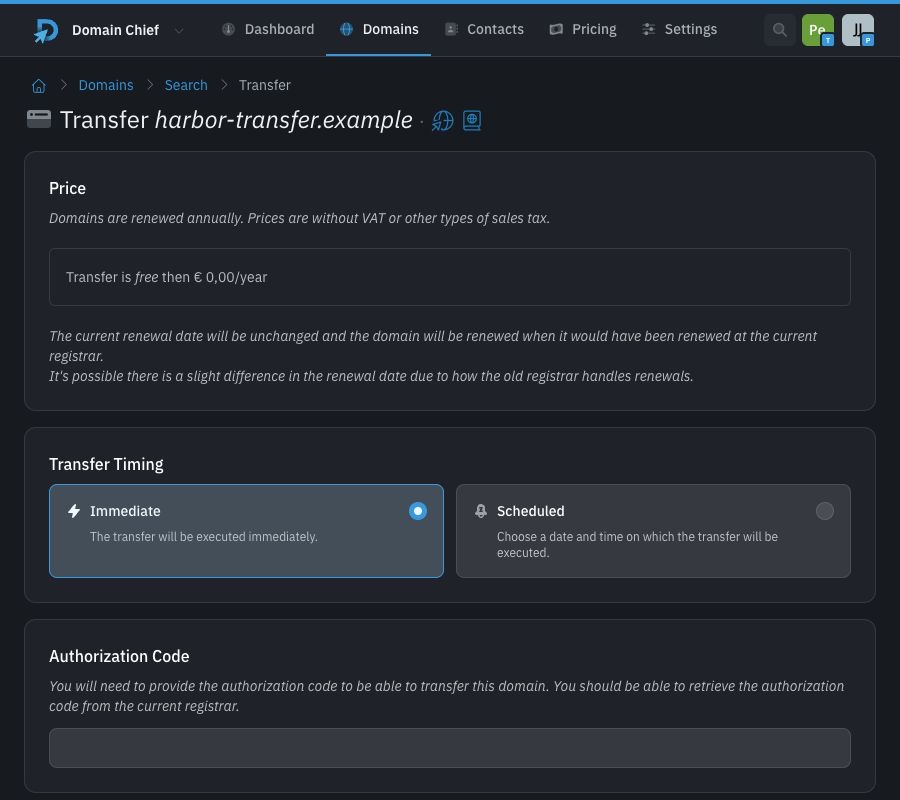
1. Open the [Domain Chief dashboard](https://domain.chief.app/dashboard?ref=chiefdocs), select **Domains**, and choose **Register**.
2. Search for the exact domain name. Because the domain is already registered, Domain Chief offers a transfer instead of a registration.
3. Review the transfer price, yearly renewal price, and renewal-date explanation.
4. Choose **Immediate** or **Scheduled** when the timing section appears. **Scheduled** is available only to teams with an active membership and for transfers that use authorization codes.
5. Enter the authorization code when the form asks for one. If no code field appears, follow the instructions shown after you submit. `.uk` domains currently work this way.
6. Choose the nameservers, DNSSEC, and registrant settings.
7. Review the registry agreements and select **Transfer**.

 ### What happens next
An immediate transfer starts when you submit the form. Scheduled transfers require an active team membership and must start at least 15 minutes in the future and no more than one year ahead. Domain Chief charges a scheduled transfer when it runs, so the final price can change before that date. You can cancel until five minutes before it starts.
For `.com`, a valid transfer completes automatically when the five-calendar-day pending period ends unless the current registrar rejects it. The current registrar must notify you of the pending transfer. If that message offers an approval link, approving the transfer can finish it sooner; you do not need to approve it for the automatic completion to occur. Many other generic top-level domains follow the same process.
Open the domain page to follow its status. [Complete any action-required notice](/domainchief/action-required) and watch for confirmation messages from the current registrar and Domain Chief.
### Keep DNS working during the transfer
A registrar transfer and a DNS change are separate actions, but the transfer form lets you choose both.
If the transfer changes the nameservers or DNSSEC keys, disable DNSSEC at the current registrar at least 24 hours before the transfer runs. For an immediate transfer, wait before submitting it. For a scheduled transfer, count back from its execution time. You can leave DNSSEC enabled only when both the nameservers and keys will remain unchanged.
To keep the existing DNS provider, choose **Use custom** in the Nameservers section, select **Fill from current**, and verify the result. If DNSSEC will also stay unchanged, select **Configure** in the DNSSEC section, choose **Fill from current**, and verify the imported key.
To move DNS to Domain Chief, keep the Domain Chief nameservers and recreate every required DNS record. Do not forget mail records such as `MX`, SPF, DKIM, and DMARC. Domain Chief manages the replacement DNSSEC keys. Enabling them can take up to 24 hours.
## Transfer a domain out of Domain Chief
### Before you start
Ask the new registrar whether it will keep the current nameservers and DNSSEC keys. If either will change, disable DNSSEC in Domain Chief and wait at least 24 hours before starting the transfer. When Domain Chief manages DNSSEC, follow the first steps in [Move from Domain Chief to custom nameservers](/domainchief/nameservers-dnssec#move-from-domain-chief-to-custom-nameservers) to remove the managed keys without changing nameservers. If both will remain unchanged, leave DNSSEC enabled.
1. Open **Domains** and select the domain.
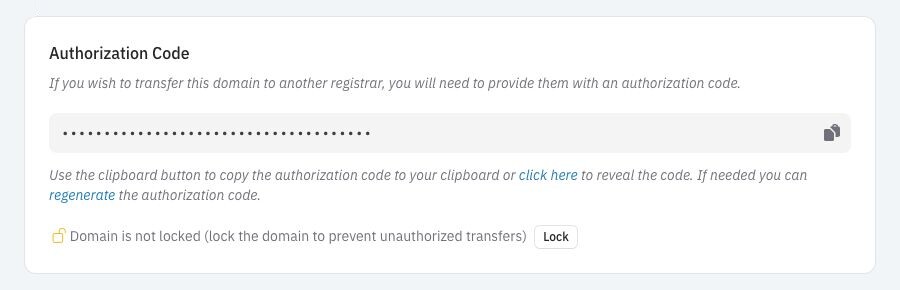
2. Find the **Authorization Code** section.
3. If the domain is locked, select **Unlock** and confirm the change.
4. Select **Generate**, **Sync**, or **Send**, depending on what the registry supports.
5. Copy the code and start the transfer at the new registrar.
### What happens next
An immediate transfer starts when you submit the form. Scheduled transfers require an active team membership and must start at least 15 minutes in the future and no more than one year ahead. Domain Chief charges a scheduled transfer when it runs, so the final price can change before that date. You can cancel until five minutes before it starts.
For `.com`, a valid transfer completes automatically when the five-calendar-day pending period ends unless the current registrar rejects it. The current registrar must notify you of the pending transfer. If that message offers an approval link, approving the transfer can finish it sooner; you do not need to approve it for the automatic completion to occur. Many other generic top-level domains follow the same process.
Open the domain page to follow its status. [Complete any action-required notice](/domainchief/action-required) and watch for confirmation messages from the current registrar and Domain Chief.
### Keep DNS working during the transfer
A registrar transfer and a DNS change are separate actions, but the transfer form lets you choose both.
If the transfer changes the nameservers or DNSSEC keys, disable DNSSEC at the current registrar at least 24 hours before the transfer runs. For an immediate transfer, wait before submitting it. For a scheduled transfer, count back from its execution time. You can leave DNSSEC enabled only when both the nameservers and keys will remain unchanged.
To keep the existing DNS provider, choose **Use custom** in the Nameservers section, select **Fill from current**, and verify the result. If DNSSEC will also stay unchanged, select **Configure** in the DNSSEC section, choose **Fill from current**, and verify the imported key.
To move DNS to Domain Chief, keep the Domain Chief nameservers and recreate every required DNS record. Do not forget mail records such as `MX`, SPF, DKIM, and DMARC. Domain Chief manages the replacement DNSSEC keys. Enabling them can take up to 24 hours.
## Transfer a domain out of Domain Chief
### Before you start
Ask the new registrar whether it will keep the current nameservers and DNSSEC keys. If either will change, disable DNSSEC in Domain Chief and wait at least 24 hours before starting the transfer. When Domain Chief manages DNSSEC, follow the first steps in [Move from Domain Chief to custom nameservers](/domainchief/nameservers-dnssec#move-from-domain-chief-to-custom-nameservers) to remove the managed keys without changing nameservers. If both will remain unchanged, leave DNSSEC enabled.
1. Open **Domains** and select the domain.
2. Find the **Authorization Code** section.
3. If the domain is locked, select **Unlock** and confirm the change.
4. Select **Generate**, **Sync**, or **Send**, depending on what the registry supports.
5. Copy the code and start the transfer at the new registrar.
 ### What happens next
The new registrar submits the transfer after it accepts the authorization code. If Domain Chief shows a **Transfer Pending** notice, approve a transfer you recognize and deny one you did not request. Approval can shorten a registry waiting period.
Lock the domain again if you decide not to continue.
## How `.uk` transfers work now
Until that date, Nominet uses a push-style transfer for `.uk`, `.co.uk`, `.org.uk`, and the other domains in the `.uk` family. Instead of the new registrar pulling the domain with an authorization code, the current registrar pushes it to the receiving registrar's tag. You may see this called a registrar tag or IPS tag.
### Transfer a `.uk` domain into Domain Chief
1. Search for the domain in Domain Chief and submit the transfer. The form does not ask for an authorization code.
2. Open the new domain page and find the **Action Required** notice.
3. Copy the Domain Chief registrar tag shown in that notice.
4. At the current registrar, ask to change the domain's IPS tag to the exact tag shown by Domain Chief.
5. Return to Domain Chief and check the domain page. It updates after the receiving registrar accepts the transfer.
Do not guess the tag or copy one from an old guide. Use the value in the app for the transfer you are making.
### Transfer a `.uk` domain out of Domain Chief
1. Ask the receiving registrar for its exact IPS tag.
2. Open the domain in Domain Chief and find **Push Transfer**.
3. Unlock the domain if the section asks you to.
4. Enter the receiving registrar's tag and select **Request Transfer**.
Domain Chief does not offer a push transfer during the first 30 days after registration. The domain page shows the date on which the option becomes available. After a push request, the receiving registrar may need to accept it within five days. Domain Chief also applies a five-day cooldown before you can request a different tag.
## The `.uk` process changes on 9 February 2027
Nominet has confirmed that `.uk` Standardisation takes effect on **Tuesday, 9 February 2027**. The current IPS-tag push process will be replaced by a pull-style transfer using a Transfer Authorisation Code.
From that date, the expected flow is:
1. Ask the current registrar to unlock the domain and create a Transfer Authorisation Code.
2. Start the transfer at the receiving registrar and enter that code.
3. The receiving registrar pulls the domain. Nominet says an unlocked `.uk` domain with a correct code will transfer immediately.
A `.uk` Transfer Authorisation Code will be valid for 14 days and will stop working after a successful transfer. After the transition, follow the authorization-code prompts in Domain Chief instead of the old tag steps.
## How a transfer affects the renewal date
The registry decides what happens to the current registration term. Domain Chief explains the result in the **Price** section before you submit.
| Renewal behavior | What it means |
| --- | --- |
| Extended | The registry adds the required renewal period to the existing renewal date. A holder-authorized generic top-level domain transfer normally adds one year, unless that would make the unexpired term longer than ten years. |
| Restarted | The registry sets a new renewal date based on when the transfer completes. The review page tells you the new registration period. |
| Unchanged | The current renewal date carries over. A small difference can occur if the old registrar records renewals differently. |
You do not choose this behavior. It belongs to the top-level domain. A free transfer can leave the renewal date unchanged, while a paid transfer may include a renewal.
## Changes that do not need a registrar transfer
| What you want to change | What to do |
| --- | --- |
| The person or organization that holds the domain | Change the registrant details. This does not change the registrar. |
| The Domain Chief team that manages the domain | Move the domain between teams. If the app reports that another team already manages it, [contact support](/support). |
| The website, email service, or DNS provider | Update the nameservers or DNS records. This does not change the registrar. |
For generic top-level domains such as `.com`, changing the registrant shortly before a registrar transfer can cause a 60-day transfer lock. If you need to change both, transfer the domain first unless your current registrar confirms that a different order is safe. Country-code domains have their own rules.
## Troubleshooting
### Why was the authorization code rejected?
Request or generate a fresh code at the current registrar. Copy it exactly, without extra spaces. If you generated a newer code, the previous one may no longer work.
### Why does Domain Chief say the domain is locked?
Remove the transfer lock at the current registrar. For a transfer out of Domain Chief, use **Unlock** on the domain page. A registry-level lock, dispute, or abuse hold may require help from the current registrar or registry.
### Why is the domain in a 60-day lock?
This is common for generic top-level domains during the first 60 days after registration, after a previous registrar transfer, or after some registrant changes. Wait for the lock to end unless the current registrar confirms that the applicable policy allows removal. Country-code rules can differ.
### Why is the transfer still pending?
Check the domain page and your email for an approval request or an **Action Required** notice. Follow [Resolve action-required notices](/domainchief/action-required) when the page offers a retry, correction, approval, or cancellation. A `.com` transfer normally remains pending until the current registrar approves it or the five-calendar-day period ends. A current-style `.uk` push can expire if a receiving registrar that requires a handshake does not accept it within five days.
### Why did the website or email stop working?
Compare the active nameservers and DNS records with the copy you made before the transfer. Use the [Chief Tools DNS checker](https://dns.chief.tools) to see the nameservers and public answers currently in use. Restore the old nameservers or recreate the missing records at the new DNS provider. The registrar transfer itself does not move website files or mailboxes.
### What happens next
The new registrar submits the transfer after it accepts the authorization code. If Domain Chief shows a **Transfer Pending** notice, approve a transfer you recognize and deny one you did not request. Approval can shorten a registry waiting period.
Lock the domain again if you decide not to continue.
## How `.uk` transfers work now
Until that date, Nominet uses a push-style transfer for `.uk`, `.co.uk`, `.org.uk`, and the other domains in the `.uk` family. Instead of the new registrar pulling the domain with an authorization code, the current registrar pushes it to the receiving registrar's tag. You may see this called a registrar tag or IPS tag.
### Transfer a `.uk` domain into Domain Chief
1. Search for the domain in Domain Chief and submit the transfer. The form does not ask for an authorization code.
2. Open the new domain page and find the **Action Required** notice.
3. Copy the Domain Chief registrar tag shown in that notice.
4. At the current registrar, ask to change the domain's IPS tag to the exact tag shown by Domain Chief.
5. Return to Domain Chief and check the domain page. It updates after the receiving registrar accepts the transfer.
Do not guess the tag or copy one from an old guide. Use the value in the app for the transfer you are making.
### Transfer a `.uk` domain out of Domain Chief
1. Ask the receiving registrar for its exact IPS tag.
2. Open the domain in Domain Chief and find **Push Transfer**.
3. Unlock the domain if the section asks you to.
4. Enter the receiving registrar's tag and select **Request Transfer**.
Domain Chief does not offer a push transfer during the first 30 days after registration. The domain page shows the date on which the option becomes available. After a push request, the receiving registrar may need to accept it within five days. Domain Chief also applies a five-day cooldown before you can request a different tag.
## The `.uk` process changes on 9 February 2027
Nominet has confirmed that `.uk` Standardisation takes effect on **Tuesday, 9 February 2027**. The current IPS-tag push process will be replaced by a pull-style transfer using a Transfer Authorisation Code.
From that date, the expected flow is:
1. Ask the current registrar to unlock the domain and create a Transfer Authorisation Code.
2. Start the transfer at the receiving registrar and enter that code.
3. The receiving registrar pulls the domain. Nominet says an unlocked `.uk` domain with a correct code will transfer immediately.
A `.uk` Transfer Authorisation Code will be valid for 14 days and will stop working after a successful transfer. After the transition, follow the authorization-code prompts in Domain Chief instead of the old tag steps.
## How a transfer affects the renewal date
The registry decides what happens to the current registration term. Domain Chief explains the result in the **Price** section before you submit.
| Renewal behavior | What it means |
| --- | --- |
| Extended | The registry adds the required renewal period to the existing renewal date. A holder-authorized generic top-level domain transfer normally adds one year, unless that would make the unexpired term longer than ten years. |
| Restarted | The registry sets a new renewal date based on when the transfer completes. The review page tells you the new registration period. |
| Unchanged | The current renewal date carries over. A small difference can occur if the old registrar records renewals differently. |
You do not choose this behavior. It belongs to the top-level domain. A free transfer can leave the renewal date unchanged, while a paid transfer may include a renewal.
## Changes that do not need a registrar transfer
| What you want to change | What to do |
| --- | --- |
| The person or organization that holds the domain | Change the registrant details. This does not change the registrar. |
| The Domain Chief team that manages the domain | Move the domain between teams. If the app reports that another team already manages it, [contact support](/support). |
| The website, email service, or DNS provider | Update the nameservers or DNS records. This does not change the registrar. |
For generic top-level domains such as `.com`, changing the registrant shortly before a registrar transfer can cause a 60-day transfer lock. If you need to change both, transfer the domain first unless your current registrar confirms that a different order is safe. Country-code domains have their own rules.
## Troubleshooting
### Why was the authorization code rejected?
Request or generate a fresh code at the current registrar. Copy it exactly, without extra spaces. If you generated a newer code, the previous one may no longer work.
### Why does Domain Chief say the domain is locked?
Remove the transfer lock at the current registrar. For a transfer out of Domain Chief, use **Unlock** on the domain page. A registry-level lock, dispute, or abuse hold may require help from the current registrar or registry.
### Why is the domain in a 60-day lock?
This is common for generic top-level domains during the first 60 days after registration, after a previous registrar transfer, or after some registrant changes. Wait for the lock to end unless the current registrar confirms that the applicable policy allows removal. Country-code rules can differ.
### Why is the transfer still pending?
Check the domain page and your email for an approval request or an **Action Required** notice. Follow [Resolve action-required notices](/domainchief/action-required) when the page offers a retry, correction, approval, or cancellation. A `.com` transfer normally remains pending until the current registrar approves it or the five-calendar-day period ends. A current-style `.uk` push can expire if a receiving registrar that requires a handshake does not accept it within five days.
### Why did the website or email stop working?
Compare the active nameservers and DNS records with the copy you made before the transfer. Use the [Chief Tools DNS checker](https://dns.chief.tools) to see the nameservers and public answers currently in use. Restore the old nameservers or recreate the missing records at the new DNS provider. The registrar transfer itself does not move website files or mailboxes.