# Organize and manage a domain portfolio
import {BrowserWindow, Callout, Head} from "zudoku/components";
Organize and manage a domain portfolio | Domain Chief
Use this guide to find the domains that need attention and apply the same change to several domains at once.
## Choose your task
- [Search and filter domains](#search-and-filter-domains)
- [Group domains with tags](#group-domains-with-tags)
- [Choose which columns appear](#choose-which-columns-appear)
- [Update several domains](#update-several-domains)
- [Export the current list](#export-the-current-list)
- [Fix a portfolio problem](#troubleshooting)
## Find and organize domains
### Search and filter domains
Open **Domains** to search by domain name. Use **Filter** when you need a list based on settings or status.
Available filters include:
- Status, TLD, contact, and tag.
- Auto-renewal, hosted DNS, DNSSEC, WHOIS privacy, transfer lock, and premium status.
- Web redirects, mail forwards, and whether mail forwarding is enabled.
- Nameserver provider.
Several filters accept more than one value. Combine filters to narrow the list, such as active domains with auto-renewal disabled, or domains on a specific nameserver provider without DNSSEC.
Search, filters, and sorting remain in place when you return to the list during the same session. Clear them when the table says **No domains found** but you expect domains to be present.
### Group domains with tags
A tag is a short team-defined label such as `production`, `client-a`, or `migration`.
1. Open the domain.
2. Select **Add tag** beside the domain heading, or select its current tag.
3. Enter the tag and select **Save**.
Each domain has one tag. Select **Clear** in the same dialog to remove it.
Tags appear beside domain names in the list. Select a tag there to filter the portfolio to domains with that value. You can also choose one or more values from the **Tag** filter.
Use a small and consistent set of tags. Differences in capitalization or spelling create separate filter values.
### Choose which columns appear
Use the table's column selector to show information that matters for the current review. Optional columns include:
- **Nameserver provider**
- **Renewal price**
- **Owner contact**
Select a column heading to sort when sorting is available. The renewal column sorts by the date Domain Chief currently shows, which may be a renewal date, expiration date, or scheduled transfer date depending on the domain's state.
## Update several domains
1. Filter the list until it contains the intended domains.
2. Select the checkbox beside each domain. The header checkbox selects eligible domains on the current page only.
3. Open the bulk actions menu.
4. Choose the action and review its confirmation or settings.
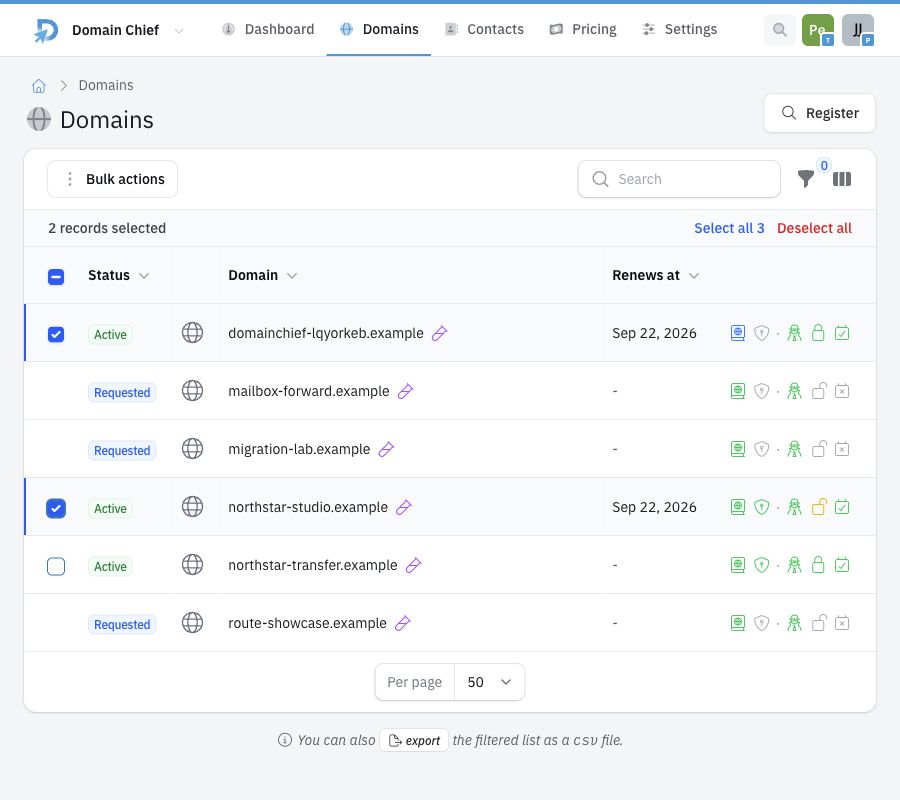
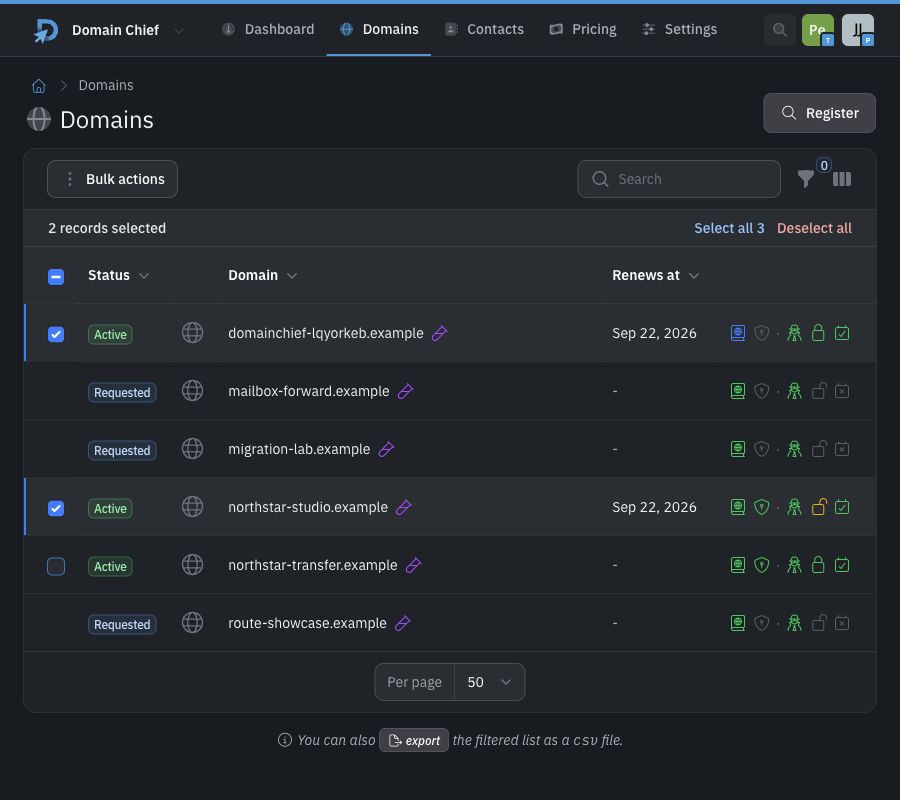 Only active domains can be selected. Available actions depend on your permissions and the selected domains:
- **Enable auto-renew** or **Disable auto-renew**.
- **Enable transfer lock** or **Disable transfer lock**.
- **Update nameservers** from a saved nameserver template.
- **Switch to hosted DNS**.
- **Enable DNSSEC via Cloudflare** when the team has a Cloudflare connection.
A filter does not make a bulk DNS change safe by itself. Check the selected count and each domain before confirming nameserver, hosted DNS, or DNSSEC actions. Those changes can interrupt websites and email when the destination zones or DNSSEC keys are not ready.
### What happens next
Domain Chief schedules the supported changes for each selected domain. Registry-backed changes may remain pending while registries process them. Open an individual domain to see its current notice and settings.
Bulk nameserver updates require a nameserver template. Create one under **Settings** before starting the action. See [Change nameservers and manage DNSSEC](/domainchief/nameservers-dnssec) for migration preparation.
Bulk nameserver changes and Cloudflare DNSSEC enablement are unavailable when the selection contains a `.de` domain. Domain Chief changes nothing in that case. Update each `.de` domain individually so its DNS configuration can be validated.
## Export the current list
Search, filter, and sort the table first, then select **export** below it. The CSV contains every domain matching the current view, including results on other pages. Checked rows do not control the export.
The semicolon-separated file includes:
- Domain and status.
- Nameservers and nameserver provider.
- Auto-renewal and renewal date.
- Root redirect and whether subdomain redirects exist.
- Whether mail forwarding is enabled.
The export is a snapshot. Changes made later in Domain Chief do not update the downloaded file.
## Useful portfolio reviews
### Find domains at renewal risk
Filter **Auto-renew enabled** to **No**, then sort the renewal column from earliest to latest. Review the date and domain status before changing auto-renewal. See [Manage renewals and expiration](/domainchief/renewals-expiration).
### Find DNSSEC gaps
Filter by **Nameserver provider** and set **DNSSEC enabled** to **No**. Confirm the DNS provider and its keys before enabling DNSSEC.
For Cloudflare-hosted zones, see [Connect Cloudflare for DNSSEC](/domainchief/cloudflare-dnssec) before using the bulk enablement action.
### Find domains using a retiring contact
Choose the contact under **Contact**. Change the registrant on each affected domain and complete any required verification. See [Manage registrant contacts and WHOIS privacy](/domainchief/registrant-contacts-privacy).
### Find domains using redirects or forwarding
Use **Has web redirects**, **Has mail forwards**, or **Mail forwarding enabled**. These filters are useful before replacing hosted DNS records because imports can be blocked by records managed by those features.
## Troubleshooting
### Why can I not select a domain?
Bulk actions are available only for active domains. A pending registration, transfer, deletion, or failed domain must be handled from its own page.
### Why did the header checkbox not select every filtered domain?
It selects the current page only. Move through the pages and apply the action in controlled batches when the result contains more domains.
### Why is an expected bulk action missing?
Actions depend on your permissions and team setup. **Enable DNSSEC via Cloudflare** appears only when the team has a Cloudflare connection. Nameserver updates also need a saved template.
### Why was nothing changed after a bulk nameserver or DNSSEC action?
Check for a `.de` domain in the selection. Domain Chief rejects the entire action and shows a notice rather than applying only part of it.
### Why does the CSV contain more domains than I selected?
Export uses the current search, filters, and sorting. It does not use the checked-row selection. Tighten the filters before exporting.
Only active domains can be selected. Available actions depend on your permissions and the selected domains:
- **Enable auto-renew** or **Disable auto-renew**.
- **Enable transfer lock** or **Disable transfer lock**.
- **Update nameservers** from a saved nameserver template.
- **Switch to hosted DNS**.
- **Enable DNSSEC via Cloudflare** when the team has a Cloudflare connection.
A filter does not make a bulk DNS change safe by itself. Check the selected count and each domain before confirming nameserver, hosted DNS, or DNSSEC actions. Those changes can interrupt websites and email when the destination zones or DNSSEC keys are not ready.
### What happens next
Domain Chief schedules the supported changes for each selected domain. Registry-backed changes may remain pending while registries process them. Open an individual domain to see its current notice and settings.
Bulk nameserver updates require a nameserver template. Create one under **Settings** before starting the action. See [Change nameservers and manage DNSSEC](/domainchief/nameservers-dnssec) for migration preparation.
Bulk nameserver changes and Cloudflare DNSSEC enablement are unavailable when the selection contains a `.de` domain. Domain Chief changes nothing in that case. Update each `.de` domain individually so its DNS configuration can be validated.
## Export the current list
Search, filter, and sort the table first, then select **export** below it. The CSV contains every domain matching the current view, including results on other pages. Checked rows do not control the export.
The semicolon-separated file includes:
- Domain and status.
- Nameservers and nameserver provider.
- Auto-renewal and renewal date.
- Root redirect and whether subdomain redirects exist.
- Whether mail forwarding is enabled.
The export is a snapshot. Changes made later in Domain Chief do not update the downloaded file.
## Useful portfolio reviews
### Find domains at renewal risk
Filter **Auto-renew enabled** to **No**, then sort the renewal column from earliest to latest. Review the date and domain status before changing auto-renewal. See [Manage renewals and expiration](/domainchief/renewals-expiration).
### Find DNSSEC gaps
Filter by **Nameserver provider** and set **DNSSEC enabled** to **No**. Confirm the DNS provider and its keys before enabling DNSSEC.
For Cloudflare-hosted zones, see [Connect Cloudflare for DNSSEC](/domainchief/cloudflare-dnssec) before using the bulk enablement action.
### Find domains using a retiring contact
Choose the contact under **Contact**. Change the registrant on each affected domain and complete any required verification. See [Manage registrant contacts and WHOIS privacy](/domainchief/registrant-contacts-privacy).
### Find domains using redirects or forwarding
Use **Has web redirects**, **Has mail forwards**, or **Mail forwarding enabled**. These filters are useful before replacing hosted DNS records because imports can be blocked by records managed by those features.
## Troubleshooting
### Why can I not select a domain?
Bulk actions are available only for active domains. A pending registration, transfer, deletion, or failed domain must be handled from its own page.
### Why did the header checkbox not select every filtered domain?
It selects the current page only. Move through the pages and apply the action in controlled batches when the result contains more domains.
### Why is an expected bulk action missing?
Actions depend on your permissions and team setup. **Enable DNSSEC via Cloudflare** appears only when the team has a Cloudflare connection. Nameserver updates also need a saved template.
### Why was nothing changed after a bulk nameserver or DNSSEC action?
Check for a `.de` domain in the selection. Domain Chief rejects the entire action and shows a notice rather than applying only part of it.
### Why does the CSV contain more domains than I selected?
Export uses the current search, filters, and sorting. It does not use the checked-row selection. Tighten the filters before exporting.