# Import and migrate DNS records
import {BrowserWindow, Callout, Head} from "zudoku/components";
Import and migrate DNS records | Domain Chief
Use this guide to bring an existing DNS zone into Domain Chief without replacing records you still need.
## Choose your task
- [Upload an export](#upload-an-export)
- [Enter BIND zone contents](#enter-bind-zone-contents)
- [Import from TransIP](#import-from-transip)
- [Copy another hosted zone](#copy-another-hosted-zone)
- [Choose between replace and merge](#choose-between-replace-and-merge)
- [Review an import safely](#review-the-import)
- [Fix an import problem](#troubleshooting)
## Before you import
The domain must use Domain Chief hosted DNS. Open **Domains**, select the domain, and choose **Manage DNS records** in its **DNS** section.
Export the current zone before a migration, even when you plan to merge. Keep that export until the website, email, redirects, and verification records work with the imported zone.
An import changes the records stored in Domain Chief. It does not move nameservers or copy a zone between DNS providers automatically. Prepare and check the destination zone before directing traffic to it. See [Change nameservers and manage DNSSEC](/domainchief/nameservers-dnssec) for the safe migration order.
## Import a zone
1. Open **Domains** and select the destination domain.
2. In the **DNS** section, select **Manage DNS records**.
3. Select **Import** below the records table.
4. Choose **Upload a file**, **BIND zone contents**, **TransIP**, or **Copy a hosted zone**.
5. Complete the fields for that source.
6. Select **Review import**.
7. Check every record under **Added**, **Removed**, and **Unchanged**.
8. Resolve any **Import blocked** notice.
9. Select **Confirm import** only when the preview matches your intended zone.
### What happens next
Domain Chief returns to the records page and sends the new zone to its hosted DNS provider. Public resolvers may continue using previous answers until their TTL expires.
Use the [Chief Tools DNS checker](https://dns.chief.tools) to check the public records. Test the website and both incoming and outgoing email before removing the old DNS zone.
## Choose an import source
### Upload an export
Choose **Upload a file** for a BIND zone, CSV, XLSX, or ODS export up to 1 MB.
1. Check the **Source domain**. Change it when the export belongs to a different domain.
2. Choose **Replace the full zone** or **Merge with existing records**.
3. Drop the export into **DNS records**, or select it from your computer.
4. Select **Review import**.
CSV and spreadsheet imports need columns for the record name, type, and value or data. TTL and priority columns are optional. Domain Chief shows an error before changing the zone when it cannot read the file or a record is invalid.
### Enter BIND zone contents
Choose **BIND zone contents** when you have the text of a BIND zone file rather than a saved file.
1. Check the **Source domain**.
2. Choose **Replace the full zone** or **Merge with existing records**.
3. Enter the records in **BIND zone format**.
4. Select **Review import**.
The text field accepts BIND syntax. CSV and spreadsheet data must be uploaded as files instead.
### Import from TransIP
The TransIP option retrieves records with a read-only access token and always replaces the full destination zone.
1. Create a read-only token in the [TransIP API settings](https://www.transip.nl/cp/account/api/).
2. Enter the **Source domain**. It may differ from the destination domain when both belong to the same TransIP account.
3. Enter the **Read-only access token**.
4. Select **Review import**.
Domain Chief uses the token once and does not save it. The token field is cleared after the records have been retrieved.
### Copy another hosted zone
Choose **Copy a hosted zone** to use another Domain Chief hosted zone in the same team as a template. This option appears only when another hosted zone is available.
1. Select the **Source zone**.
2. Select **Review import**.
Copying replaces the full destination zone. Domain Chief copies the record type, name, content, TTL, priority, and comment. Hostname targets that refer to the source domain are rewritten for the destination domain.
Web redirects and mail-forwarding settings are not copied. Configure those features separately after the records are in place.
## Review and apply the import
### Choose between replace and merge
| Import behavior | Existing records | Conflicting records |
| --- | --- | --- |
| **Replace the full zone** | Records absent from the import are removed. | The imported value replaces the current value. |
| **Merge with existing records** | Unrelated records remain. | The imported value replaces the conflicting value after confirmation. |
Use replace for a complete and current export. Use merge when the import contains only part of the zone or Domain Chief already manages records that must remain.
TransIP imports and hosted-zone copies use replace. File uploads and BIND zone contents let you choose.
### Review the import
The review separates the plan into:
- **Added** records that will be created.
- **Removed** records that will no longer exist after the import.
- **Unchanged** records that already match.
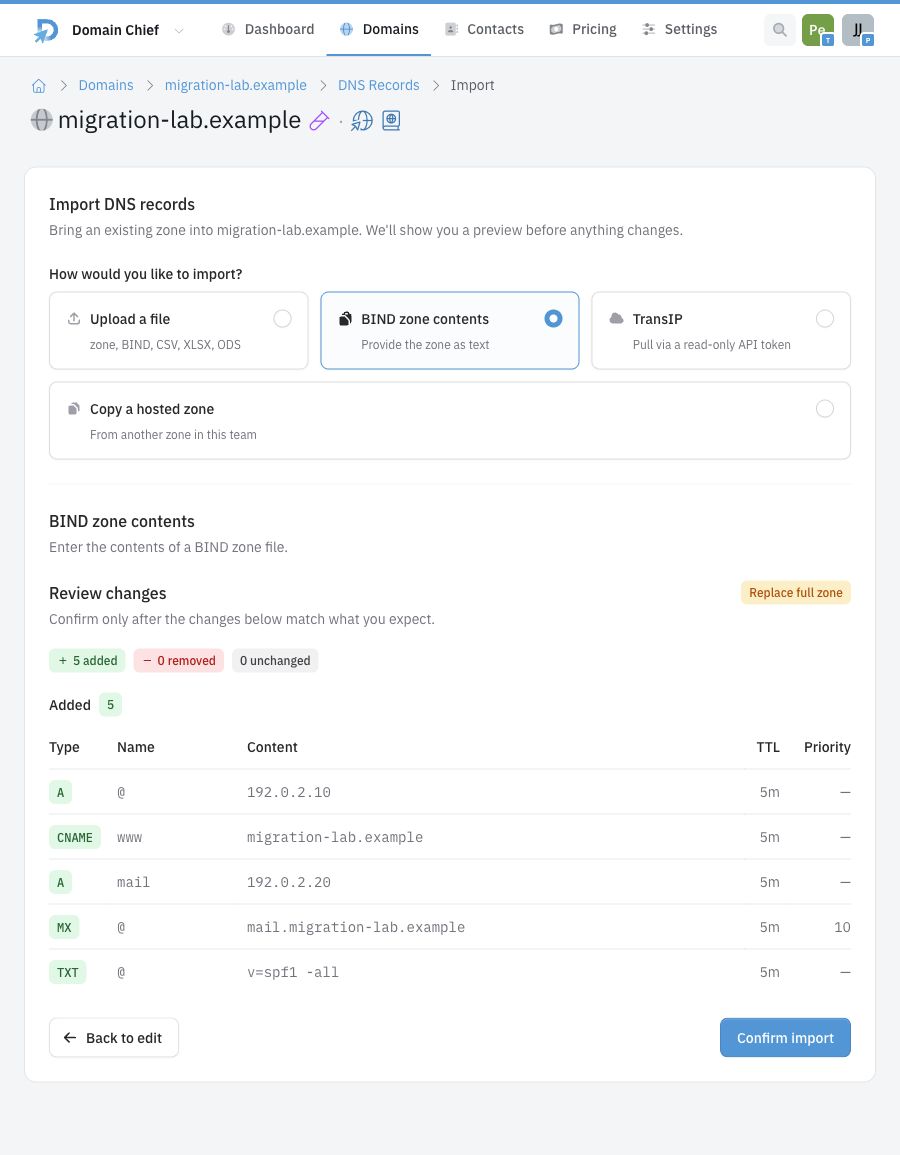
 Pay closest attention to removed website, `MX`, SPF, DKIM, DMARC, verification, redirect, and mail-forwarding records. Expand **Unchanged** when you need to compare the complete zone.
Domain Chief blocks confirmation when the import would remove DNS records required by an active web redirect or mail-forwarding configuration. Open the linked settings and decide whether to keep or remove that feature before reviewing the import again.
If the destination zone changes after you review it, Domain Chief creates a new plan and asks you to confirm again. Read the updated plan rather than assuming it matches the first preview.
## Troubleshooting
### Why is Copy a hosted zone missing?
The team needs another domain with Domain Chief hosted DNS. The destination domain and domains using custom nameservers are not offered as sources.
### Why does the file fail before showing a preview?
Check that it is a BIND zone, CSV, XLSX, or ODS file no larger than 1 MB. For CSV and spreadsheets, include columns for name, type, and value or data. Also check that **Source domain** matches the domain represented by the export.
### Why is the import blocked?
The proposed removals include records managed by an active web redirect or mail-forwarding setup. Follow **Open redirects and mail settings**, then keep the feature or remove its configuration before trying the import again.
### Why did the preview change when I confirmed it?
The destination zone changed after the review. Domain Chief refreshed the plan to prevent an outdated preview from being applied. Check the new additions and removals, then confirm again.
### Why are the old records still visible publicly?
DNS resolvers may cache the previous answer until its TTL expires. Confirm that the records page has no synchronization warning, then check the domain with the [Chief Tools DNS checker](https://dns.chief.tools).
Pay closest attention to removed website, `MX`, SPF, DKIM, DMARC, verification, redirect, and mail-forwarding records. Expand **Unchanged** when you need to compare the complete zone.
Domain Chief blocks confirmation when the import would remove DNS records required by an active web redirect or mail-forwarding configuration. Open the linked settings and decide whether to keep or remove that feature before reviewing the import again.
If the destination zone changes after you review it, Domain Chief creates a new plan and asks you to confirm again. Read the updated plan rather than assuming it matches the first preview.
## Troubleshooting
### Why is Copy a hosted zone missing?
The team needs another domain with Domain Chief hosted DNS. The destination domain and domains using custom nameservers are not offered as sources.
### Why does the file fail before showing a preview?
Check that it is a BIND zone, CSV, XLSX, or ODS file no larger than 1 MB. For CSV and spreadsheets, include columns for name, type, and value or data. Also check that **Source domain** matches the domain represented by the export.
### Why is the import blocked?
The proposed removals include records managed by an active web redirect or mail-forwarding setup. Follow **Open redirects and mail settings**, then keep the feature or remove its configuration before trying the import again.
### Why did the preview change when I confirmed it?
The destination zone changed after the review. Domain Chief refreshed the plan to prevent an outdated preview from being applied. Check the new additions and removals, then confirm again.
### Why are the old records still visible publicly?
DNS resolvers may cache the previous answer until its TTL expires. Confirm that the records page has no synchronization warning, then check the domain with the [Chief Tools DNS checker](https://dns.chief.tools).